Your first LumaDeck show: scenes, logo and text
You have a set tonight and want a screen that feels like yours. Let’s prepare a simple starting point: changing scenes, the performer’s name and your logo. You can try it with Free; Pro lets you save the show and return to it another day.
Open LumaDeck in your browser and have an image of your own ready, ideally a transparent PNG logo. One file up to 15 MB is enough for this walkthrough. You can prepare scenes and text without an account; saving and loading shows requires signing in with active Pro access.
1. Stage: choose the look of your set
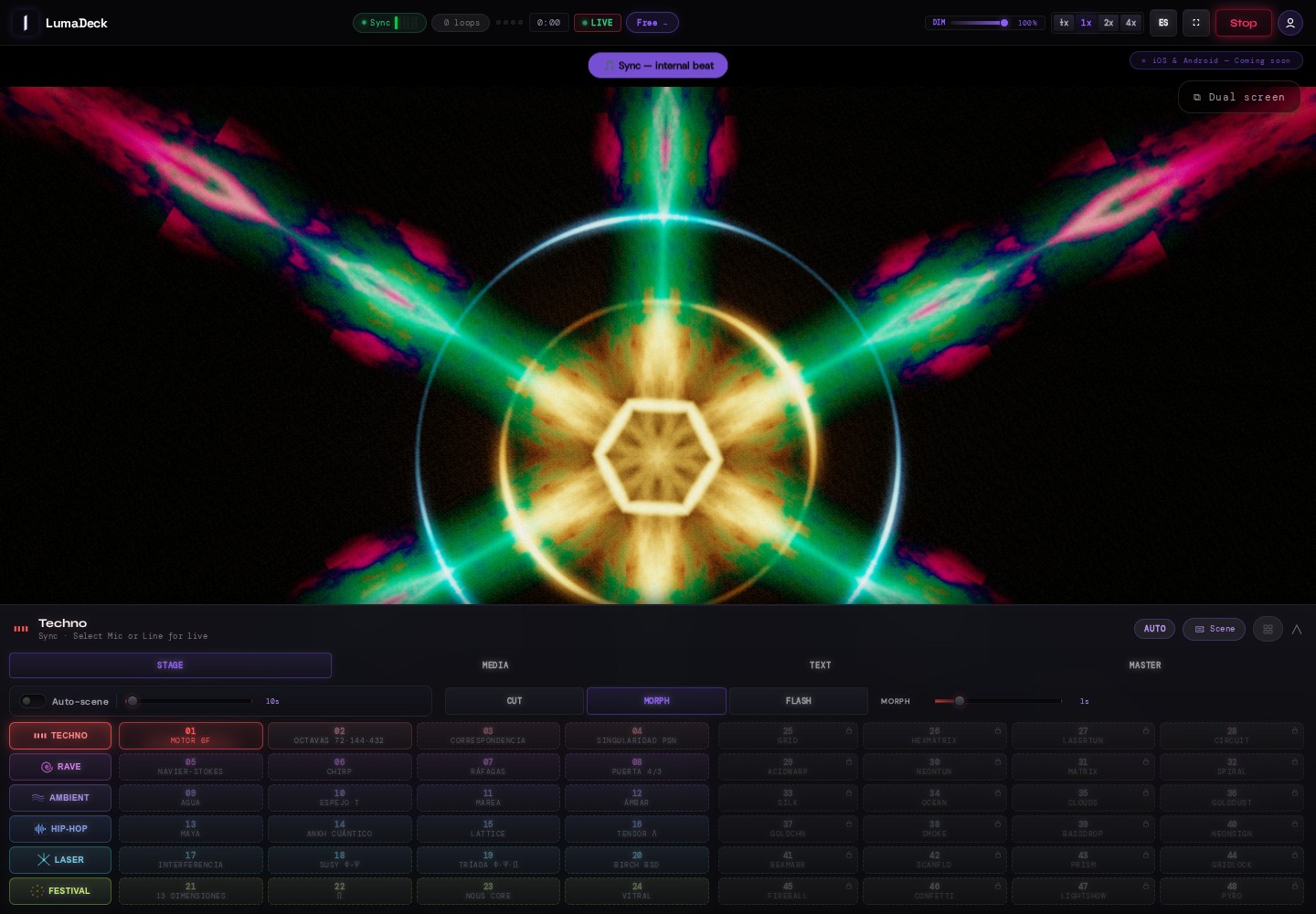
In Stage, try the available pads and visual families, such as Ambient or Techno. To change an assignment, open the pad editor and choose a scene you have access to. Start with a few that work together. A lock may indicate separately purchased content: Pro expands capabilities but does not include every pack.
For a first try, set SCN to 10 seconds, choose Morph and set its fader to 1 second. These are starting values for watching the changes. Scene morph is separate from the crossfade between videos. You can refine both later.
2. Master: decide where the pulse comes from
To prepare without connecting anything, use SYNC in Master. It creates an internal pulse at your chosen BPM; it is not listening to the track. For a response to real music, open Audio, choose an available microphone or line input and grant permission when the browser asks.
Check that the music reaches that input. Opening Spotify or another player does not connect it automatically. LumaDeck analyses sound and moves the image; it does not play your music. If there is no signal, follow the audio return guide before increasing reactivity.
3. Media: place your logo over the scene
In Media, press Load and select your file. In its row, change NORMAL to LAYER and open ADJUST. Place it in a corner, reduce its size and check that the image has room around it. Transparency depends on the original file.
Try reactivity Off first, then compare it with Energy. For periodic appearances, check the layer’s AUTO participation, Visible time and Show every interval, with PLAY active. The reactive logo guide explains this setup in detail.
Free allows one media item: if you use it for your logo, that takes the available slot. Pro allows up to 21 images or videos of 30 MB each. These are items to organise within your show, not 21 simultaneous layers.
4. Text: prepare the performer and the night
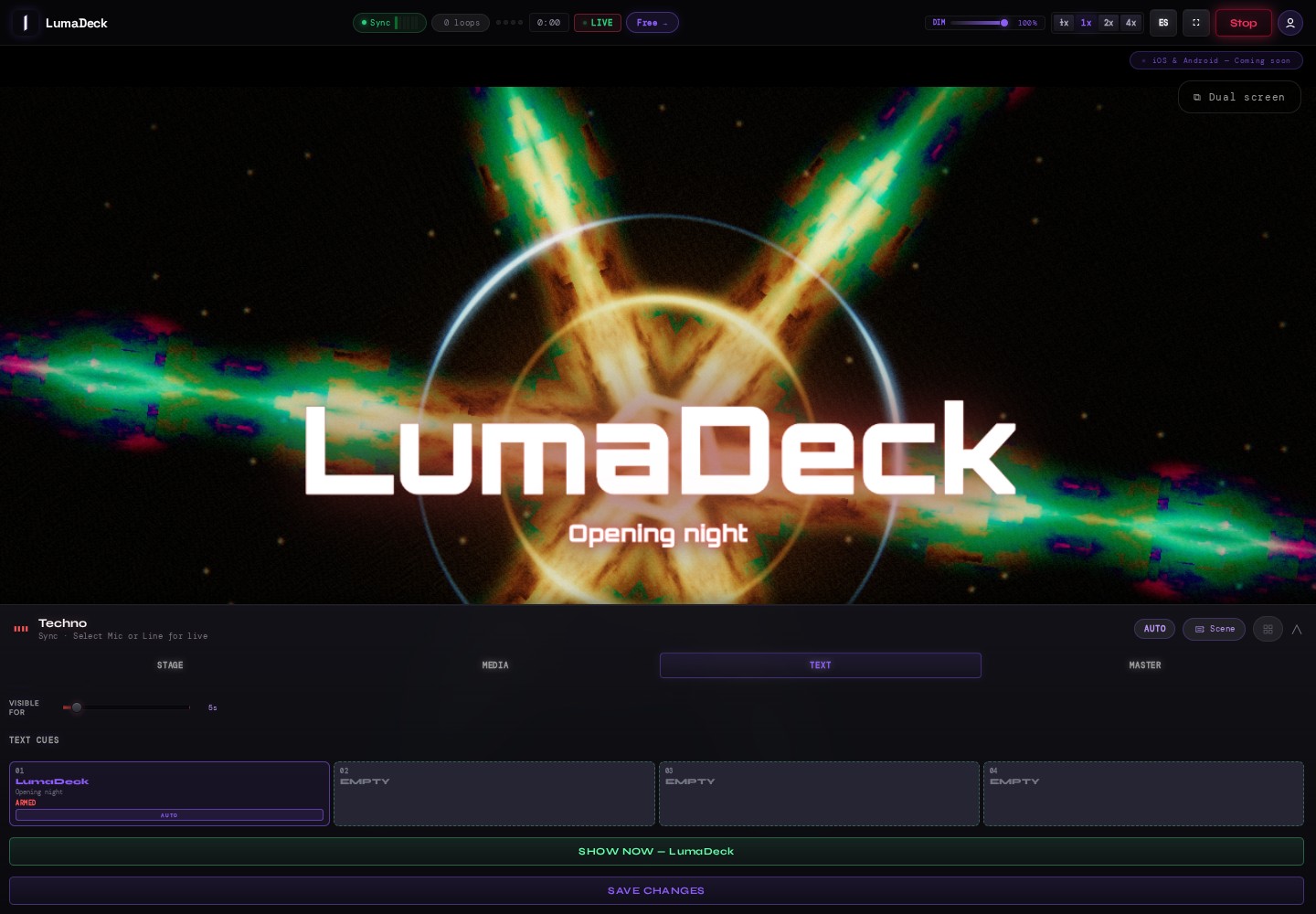
In Text, enter the performer in DJ name and the venue or session in Event / Venue. For example, “LumaDeck” and “Opening night”, as in the screenshot. Adjust the size and font, then click an EMPTY slot in TEXT CUES to create your first cue. To edit it later, select it, change the fields and press SAVE CHANGES.
SHOW NOW lets you see it over the image. Look from a distance: it should be readable without covering what happens behind it. SAVE CHANGES commits that text edit; you have not yet saved a show to your account.
5. Let AUTO follow your choices
Open Master, check that transport is on Play and enable its AUTO. The SCN chip lets scenes participate; also check which rows and pads are enabled for the program. Let it run through several scenes and adjust any that do not fit.
Stage AUTO is for previewing scenes; Master AUTO coordinates the show and takes priority. Its chips select what participates. Add media and automatic text once you like the basic sequence. The conductor schedules changes on its beat grid: SCN is a requested duration, not a guarantee of an exact timed cut. See the AUTO guide for more detail.
6. With Pro, save and check your show
Sign in to your Pro account, open the user menu and press Save show. The first save takes its name from the performer and event you prepared. Wait for confirmation and check that it appears in My Shows. If an error is reported, keep the session open and retry: an error is not a successful save.
To recover it, sign in to the same account, open My Shows and select its card. Saving after loading a show updates that show. Save again after making new adjustments you want to keep.
The show stores configuration and media references. The files are not uploaded. Keep your image and video folder: if you change computers or the browser no longer has access to the files, select them again when prompted. After loading, also check the current computer’s audio input and screen output.
Open it with the account matching the recipient email, confirm your email if you register and press “Activate my 30 days of Pro”. The period starts on activation; opening the link does not consume it. Check the end date shown on the page. Redeeming requires no card and creates no subscription or automatic charge. If you have no other active Pro entitlement when it ends, you return to Free: your shows remain stored, but you need Pro to use them again. Invitations are personal; this guide does not grant a trial on its own.
7. Rehearse on the audience screen
In Master, Dual screen opens a separate output. Move that window to the screen connected to your computer and check the format and readability. Keep the browser and show running. The laptop to big screen guide explains the steps.
- A scene is visible and changes happen at the pace you want.
- The logo and text are readable from the audience’s position.
- Your chosen audio input receives music, or you have chosen to work with SYNC.
- You have tried loading the saved show and recovering its media, if you have Pro.
Free includes 48 scenes, 24 pads, AUTO, text and audio reactivity, with a watermark. Pad and cue edits are for the current session; saving and loading shows is a Pro capability. LumaDeck runs the show in your browser: it does not record or export a video.
When you want to refine a control, consult the full user guide. You can also share it with your AI assistant and ask for help step by step with the equipment you have.
Prepare your first session
Start with a few scenes and a line of text. Add more once you like how it looks.
Open LumaDeck Free