AUTO escenas / Auto-scene
Automatic scene preview. Master AUTO takes priority and stops this local timer.
LumaDeck Web · Reviewed 2026-10-01
Audio-reactive visuals in your browser, your branding and your session’s text. Start with Free and follow this guide yourself or with your AI.
Looking for a two-hour visuals video on YouTube or for your DJ set? If you need a screen during a live session, LumaDeck offers another option: scenes generated in real time that can react to the music reaching the browser. Add your identity and control the transitions. If you need to deliver an MP4 or rendered intro, this application does not export video.
Open LumaDeck for free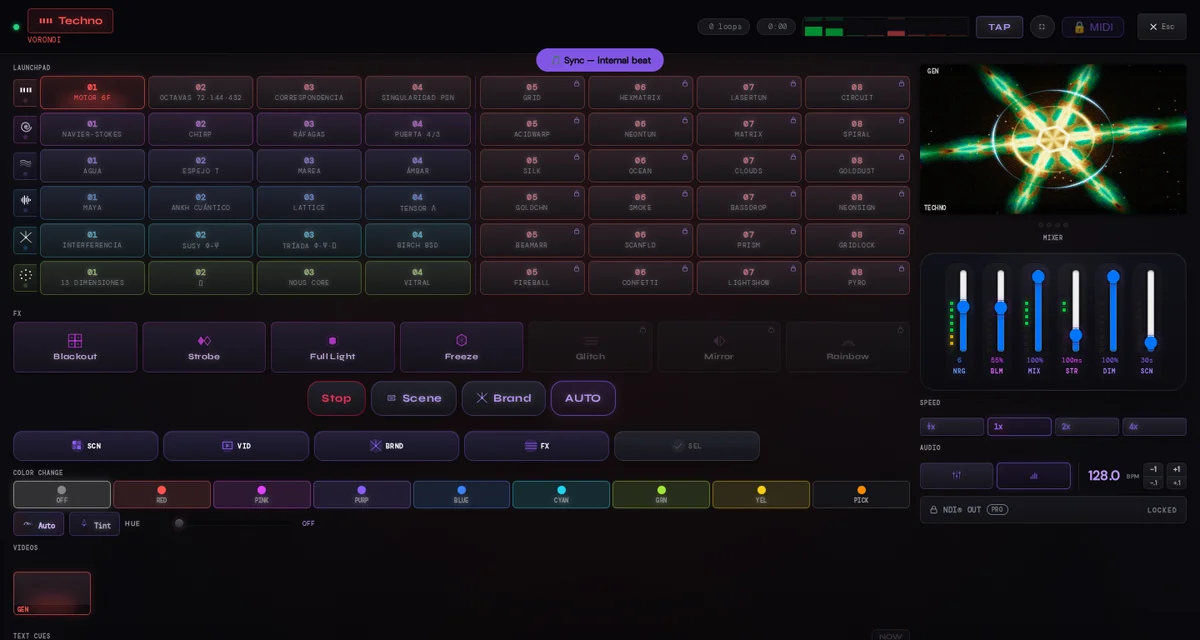
| Every control | Free | Pro |
|---|---|---|
| Included scenes | 48 | The same 48; content packs separate |
| Pads | 24, session edits | 48, account-owned bank |
| Local images and videos | 1 up to 15 MB | 21 up to 30 MB each |
| Custom GLSL | 1 | 21 |
| Text, AUTO and reactivity | Yes | Yes |
| Save and restore shows | No | Yes |
| Watermark | Yes | No |
| Glitch/Mirror/Rainbow post FX, MIDI Learn and NDI OUT | No | Yes |
Pro costs 9.99 EUR/month or 79.99 EUR/year. It is a capability subscription: content packs are separate purchases. The full catalogue has 239 scenes and 20 packs. Free works without signup; its pad edits are not retained as a show. If Pro expires, saved shows are preserved but cannot be used until Pro is restored.
Choose and schedule the scenes accompanying your music.
Automatic scene preview. Master AUTO takes priority and stops this local timer.
Requested scene duration. The Master conductor schedules changes on its beat grid; this is not a guarantee of an exact 0.33-second change.
Immediate cut.
Interpolation between compatible scenes.
Flash transition.
Preferred entry duration. The effective maximum follows SCN: up to 1 s it allows at most 240 ms; above that it leaves 760 ms stable, up to a 6000 ms ceiling.
Select a visual family. A lock may indicate content you do not own; Pro does not include packs.
Trigger the assigned scene. The editor selects available scenes. Free: 24 session pads; Pro: 48 pads and an account-owned bank.
Visual response intensity; this is not audio output volume.
Composition glow.
Blend between scene and main-bus media. LAYER has its own editor.
Load local material and choose main visual or overlay layer.
Select local images, videos or .luma files. Free: 1 media item up to 15 MB; Pro: 21 up to 30 MB each. The browser must support the codec.
Return to generated scenes as the main visual.
Step through loaded media.
Enable sequential media selection.
Cycle media according to their schedule. Master AUTO coordinates the overall program.
Enable beat-related video cuts.
Main-bus media crossfade. Separate from scene morph.
Requested media cadence; the conductor also respects duration and completion rules.
The name triggers media. AUTO controls participation; NORMAL uses the main bus and LAYER overlays it. ADJUST opens position/style; remove releases the item from this session.
Drag to position and use handles to size. Presets include centre, corners and lower third. Layer x/y range: −0.2 to 1.2; width: 0.08 to 1.4 of the master.
Rotation −180…180°, opacity 0…100%, Normal/Screen/Add blend and Off/Energy/Beat/Both reactivity. Aspect ratio is preserved; file transparency helps integrate logos.
Entry Glow/Flash/Zoom/Slide/Wave/Glitch/Fade/Pulse; visible 3–30 s, repeat 10–120 s. Requires PLAY and AUTO participation. HIDE removes the visible layer; DONE closes the editor.
Prepare names, messages and their appearances.
Artist name, up to 28 characters. Edits the selected cue draft.
Event or venue name, up to 40 characters.
Each line has its own font selector. Use the options actually offered in the dropdown.
Artist name size, combined with global size.
Event line size.
Scale both lines together.
Per-line colour. White restores the mood colour.
Open this line’s gradient: enable, start/end colours and angle.
Text entry effect. Separate from global Master post FX.
Automatic text interval.
Visible time per appearance.
Select, edit and organise prepared texts. SHOW NOW fires the selected cue; SAVE CHANGES commits its edit, not a cloud show. Free cues last for the session; Pro saves them locally per account.
Show the selected text now.
Commit the edited cue. Saving the show is a separate action.
Control the show, its audio input and the audience output.
Aspect ratio: 16:9, 4:3, 21:9, 1:1 or 9:16. Check the fit on your screen.
Auto, 1080 or 720. Auto follows resources and demand; output dimensions do not guarantee source detail or steady performance.
Choose a compatible receiver on the local network; video without audio. Free retains the watermark.
Black out the master while the control is active.
Master flashes. A manual performance control; the initial assistant does not activate it.
Full master light while the control is active.
Freeze visual motion; this does not save the show.
Global glitch post FX on the composition.
Allow the conductor to use this effect.
Global mirror post FX on the composition.
Allow the conductor to use this effect.
Global rainbow post FX on the composition.
Allow the conductor to use this effect.
Flash interval; lower values change faster.
Start or stop show transport. Some permissions require a user gesture.
Advance to the next eligible scene.
Display the configured brand/text.
Show conductor. Coordinates eligible domains respecting settings and manual performance. SCN/LPS/TXT/FX chips choose what participates.
Choose a microphone or available input and grant permission. Spotify or another player must feed that input; there is no automatic Spotify connection.
Internal source at the selected BPM. Program without a microphone; it is not listening to the song.
Video output using Output Bridge and the NDI runtime on the same computer. Requires Pro.
Fine adjustment of internal tempo.
Tap repeatedly to set tempo; also T outside text inputs.
Final master brightness. Zero leaves the output black.
Select a palette colour.
Custom colour picker.
Automatic colour changes.
Apply colour treatment to video too.
Position on the hue wheel, displayed in degrees (0–360°). OFF disables the shift; with Auto colour enabled the fader is a display and does not take control.
Trigger loaded media; the monitor shows the composed master.
Toggle automatic brand/text appearances.
Fire the brand now.
Open a separate output or fullscreen. The user places the window on the audience screen.
Save your configuration, recover shows and use additional tools.
Save configuration and media references to your Pro account. Files stay local. Updates the loaded show; an error is not a successful save.
List and restore your Pro account’s shows. Reselect missing media. When Pro expires, shows remain stored but their use is locked.
Load custom GLSL from the pad editor. Free allows 1 custom shader; Pro 21. The library persists per account in this browser; signed-out work is temporary. Source and files remain local.
Map compatible MIDI controls to instrument actions. Pro has 94 targets; mappings are saved locally per account. Browser and hardware must support MIDI.
Use this guide in a conversation, or ask an agent with browser access to help on your open page. Connecting through site tools depends on the client and its permissions. Proposals require visible confirmation and may affect an active output. Disabling assistance or reloading removes permission. You select files, grant audio access and decide live triggers.
OpenAI documents Site tools for ChatGPT Work and Codex in its built-in browser. Availability depends on the model, version, account and permissions. LumaDeck provides this connection; verification inside the ChatGPT app is still pending.
Claude Code documents a Chrome connection. Kimi Code supports browser tools through MCP. An agent with authorized browser access can follow this guide and use the normal interface. That does not establish that it discovers LumaDeck WebMCP tools: check which tools are available in that session.
Copy the instructions below. Your assistant can explain steps and help choose settings; you apply them. No special connection is needed for guidance. Work on the show computer: logos and videos stored on another computer do not appear automatically.
Enabling the connection lets the assistant read this page’s text, settings and media names. Tools do not provide passwords, sessions, files or GLSL source. Also review your AI provider’s privacy policy. The guide works without enabling the connection.
Check the input and permissions. SYNC generates its own pulse. Spotify does not connect automatically: its music must reach the selected microphone or input.
Check LAYER mode and adjust size/opacity. Transparency depends on the original file.
Check Master AUTO, SCN participation and eligible rows/pads. Stage AUTO is a separate preview.
SCN limits the entry: up to 1 s, effective morph is at most 240 ms. Your preference remains available for longer intervals.
Saving shows requires an active Pro account. A network error is reported: keep the session open and retry; it does not mean the show was saved.
Files are not uploaded. They reconnect when locally accessible; otherwise, select them again.
Check Play, Blackout, DIM, selected media and output connection. First try a Free scene in the monitor.