Your own GLSL shaders as live DJ visuals
A shader stops being a code experiment when you can reach for it during a set. LumaDeck's Shader Lab takes your fragment shader from source to a real pad, then lets the music give it movement.
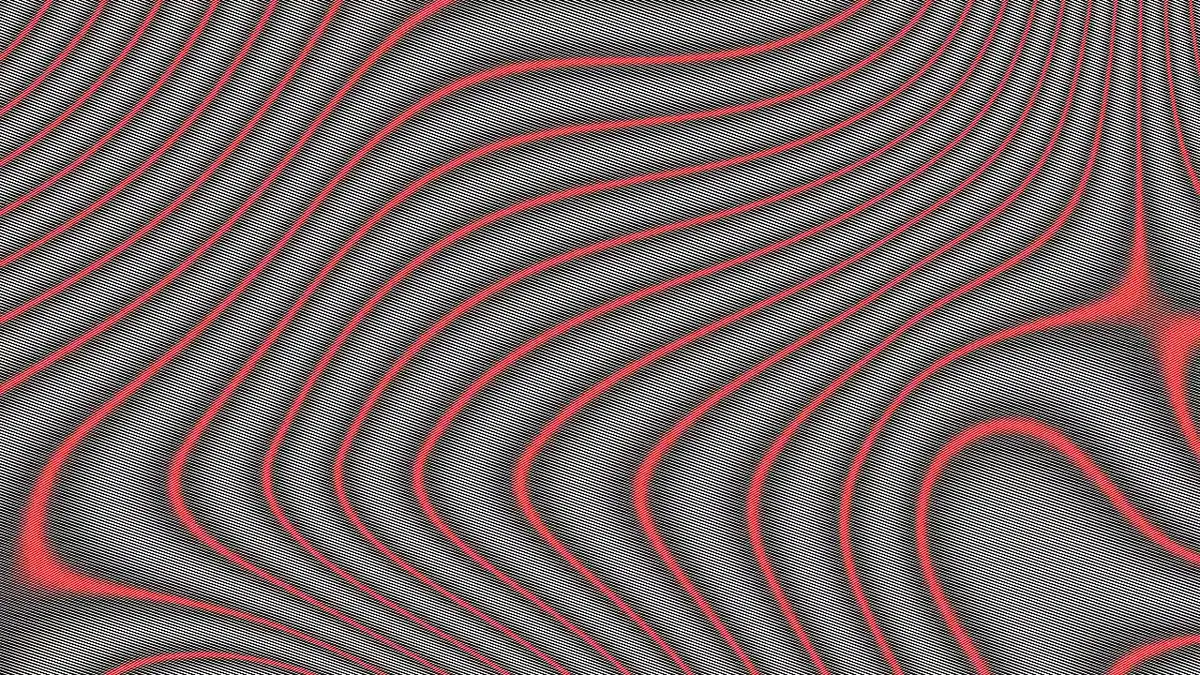
From code to pad
Open Shader Lab, paste or write your GLSL fragment shader and use the isolated preview before it reaches the show. If it passes, save it and assign it to a pad. From then on, it behaves like the rest of your set: you can fire it manually and return to it while you perform.
It has to draw, not merely look valid
A missing bracket is easy to catch. A shader that compiles but cannot produce a frame is more dangerous on stage. LumaDeck checks the source, compiles and links it, and performs real test draws inside a separate worker with a four-second budget. If that admission does not finish cleanly, the shader does not enter the live engine.
Choose how it listens
Once admitted, choose the reactive mode that suits the piece: Off for motion on its own, Beat for the pulse, Energy for the intensity of the music, or Both. You do not have to rewrite the shader every time the room calls for a different response. The SYNC guide explains how to feed that response from SYNC, Mic or Line.
Your source stays local
Your GLSL source remains in that browser profile. It is not uploaded to LumaDeck's servers. A cloud show can remember the reference and the pad setup, but not move the source to another machine for you. If you change browser or device, take your source with you and add it there.
Free keeps one custom shader; Pro expands that to 21 per show. This is a live canvas, not a promise that every shader from every website will run unchanged. Shader Lab gives you a safe place to adapt and test yours before the Master sees it.
Take your shader to the pad
Open Shader Lab, run the preview and make the visual yours.
Open Shader Lab