Digital art for screens: ambient visuals for hotels and venues
A screen in a reception area, beside the bar or in a lounge can become part of the room's atmosphere. Colour, movement and a connection to sound all change how that corner feels. Start by choosing the image that suits the space, then give it a pace that works there.
LumaDeck lets you prepare compositions with generative scenes, images, videos, your logo and text in a browser. You can adjust them live and, with Pro, save the setup as a show to load again later.
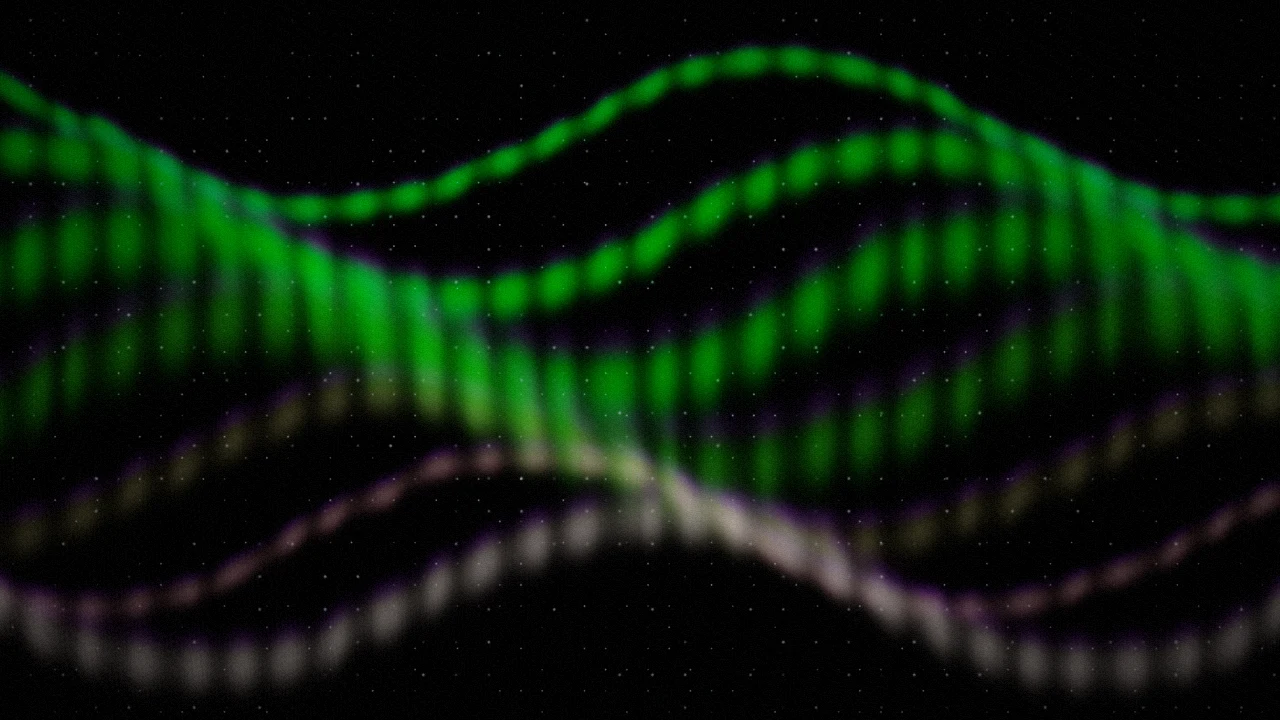
An image created while you watch
A video plays a prepared sequence. A generative scene builds its image in real time: shapes, patterns, colour and movement depend on its parameters. You can change a scene's character without producing another video file.
Sound response adds another possibility: movement can follow the audio coming into LumaDeck. A composition can accompany quiet background music or become more active during an event. The result depends on the scene, the audio source and your settings.
Start with the room
For a reception area, try slow movement, infrequent changes and colours that work with the surroundings. A lounge might suit a restrained response to music. During an event, a logo and a short welcome message can give the same screen a different purpose.
These are starting points. Look at the image from the audience's position: something pleasant on a laptop may be too bright, too fast or too small when it fills a wall. Adjust the composition first, then decide how much it should change during the session.
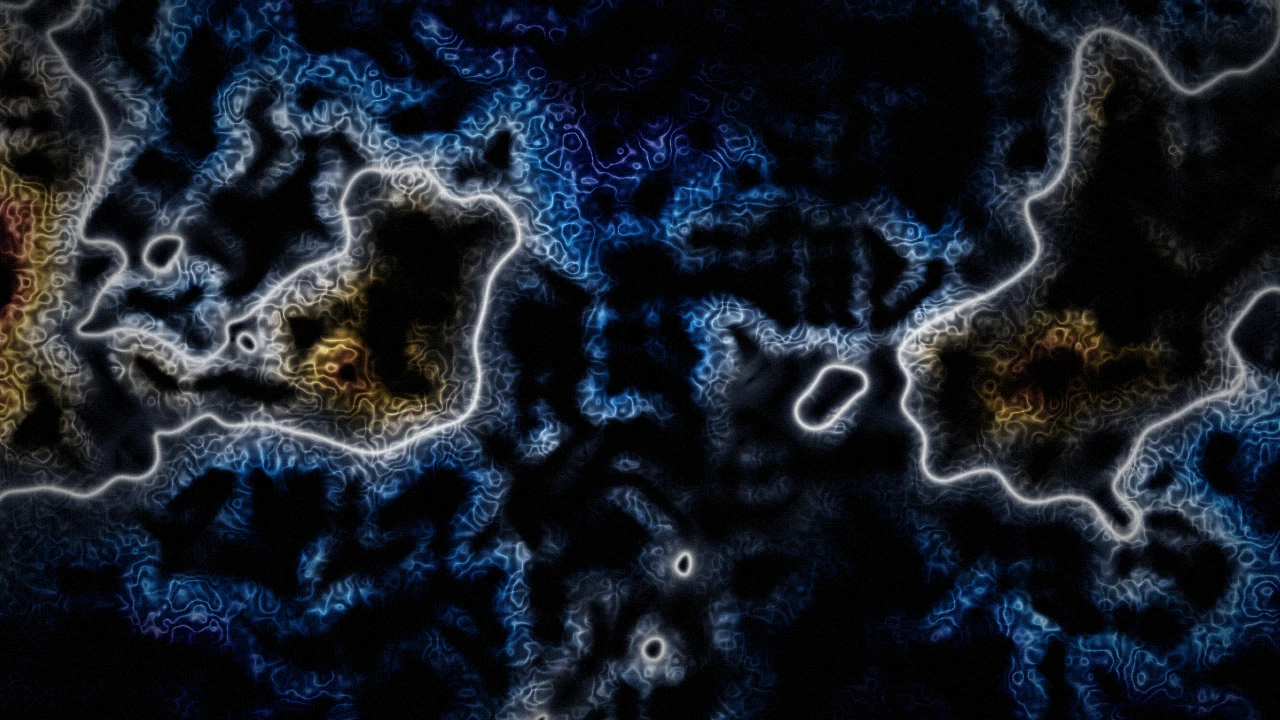
Let the room's sound take part
A line input lets LumaDeck analyse the music signal connected to your computer. With a microphone selected and permission granted, it can respond to whatever that microphone picks up: music, conversation or activity in the room. Microphone position and input level determine that mix.
Start with a gentle response and check it both when the room is quiet and when it becomes busier. Check what happens with a loud sound close to the microphone and adjust its level if the response is excessive. To work without capturing real audio, use SYNC and adjust the movement to its internal pulse; SYNC does not listen to the music. LumaDeck analyses audio; it does not play the venue's music.
The audio input guide explains how to prepare the signal. You can open and explore the app without granting microphone access.
Build a first composition
- Open LumaDeck and choose a Free scene to see how it looks on your screen.
- Adjust colour and movement from the audience's position.
- To alternate scenes, select those that fit and set AUTO's scene duration and transition. A quiet setting often benefits from leaving time to look at each composition; try it in your own room.
- Add your logo as an image or a short text when it serves a purpose. The logo guide explains Normal/Layer modes.
- Test the output and audio on the equipment you will use. With Pro, save the show under a clear name, such as “Afternoon lounge”.
The user guide takes you through the controls and includes instructions you can give your AI assistant. There is also a guide to sending the output to a larger screen.
What Free lets you try, and what Pro saves
Free includes 48 scenes, 24 pads and one slot for an image or video up to 15 MB, with a watermark. You can explore the instrument and prepare the current session; saving and loading shows requires Pro. Free also retains one local shader per account, which does not save your pad arrangement as a show.
Pro supports up to 21 media items of 30 MB each. Those are library slots for images and videos, not 21 simultaneous layers. Additional content packs are sold separately; subscribing does not unlock the entire artistic catalogue.
Media files stay on your device. Saving a show does not upload your videos: on another computer you will need the files and must link them again. Check that workflow before using the setup for an opening or event.
Large screens and immersive installations
A composition can feed a screen or projector connected to your equipment. A facade, several surfaces or an installation expected to run unattended for days also needs appropriate formats, distribution, hardware and operation. LumaDeck does not provide facade mapping or remote management of a screen fleet. Current output goes up to 1080p, depending on settings and available resources.
If you need a file to load into another player, bear in mind that LumaDeck does not record or export video. You prepare a composition that runs in the browser. Use your own or authorised media and check the packs' terms of use.
Start with one scene and the screen you already have. Adjust the atmosphere, test the sound and decide whether the composition belongs in your next show.
If you are still choosing between a logo, prepared videos or live visuals, what to put on your venue screen compares those uses. To prepare scene changes, see how AUTO works.
Give your screen a composition of its own
Try a scene, adjust its movement and see how it fits your space.
Try LumaDeck Free